If you have ever organised an event with more than twenty people, you know the feeling. A clipboard circulates the room. Half the signatures are illegible. Three people miss it entirely. The next morning you spend an hour transcribing a crumpled sheet into a spreadsheet — only to discover a column was cut off at the fold.
Electronic signatures at events solve all of this. But picking the wrong tool can make the problem worse. This guide explains exactly what to look for, how to set it up step by step, and how to make the experience smooth for every attendee.
What "electronic signature" means at an in-person event
When lawyers talk about electronic signatures, they mean cryptographic certificates that verify identity remotely — tools like DocuSign or Adobe Sign. These are excellent for contracts sent by email. They are completely wrong for a room of people arriving at a door.
What you actually need at an event is a captured handwritten signature — someone draws their signature with a finger or stylus on a tablet screen. It looks like a real signature, it is tied to a known attendee on your list, and it is timestamped automatically.
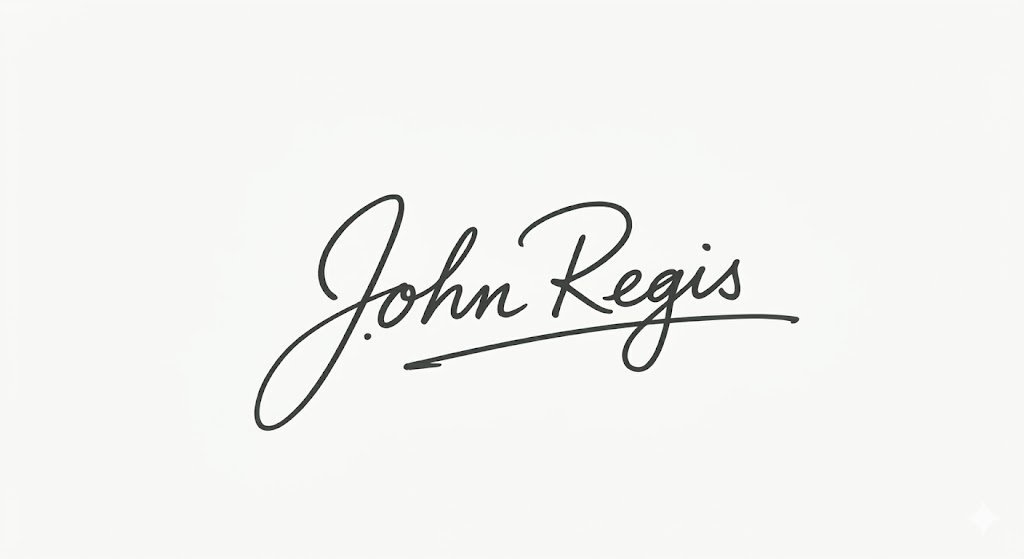
The key distinction: remote e-sign tools are built for one-to-one document workflows. Event signature tools are built for one-to-many in-person workflows — a room full of people arriving at a door. These are fundamentally different problems requiring fundamentally different tools.
Two ways to run signature collection at events
Attenda supports two distinct check-in modes. The right one depends on your event size, format, and how much staff you have at the entrance.
Registration desk — staff-managed
A staff member manages check-ins from an admin panel. They find each guest in the list, check them in, and send a signature request to a separate kiosk screen facing the guest. The guest signs while the staff member moves to the next person. This works well for formal events — annual meetings, legal assemblies, award ceremonies.
Kiosk check-in — self-service
A tablet sits at the entrance on a small stand. Guests walk up, type their name into the search field, confirm it is them, and sign. No staff needed at the door. This works well for events where guests arrive over an extended window — networking events, member meetings, training days.
How to set it up: step by step
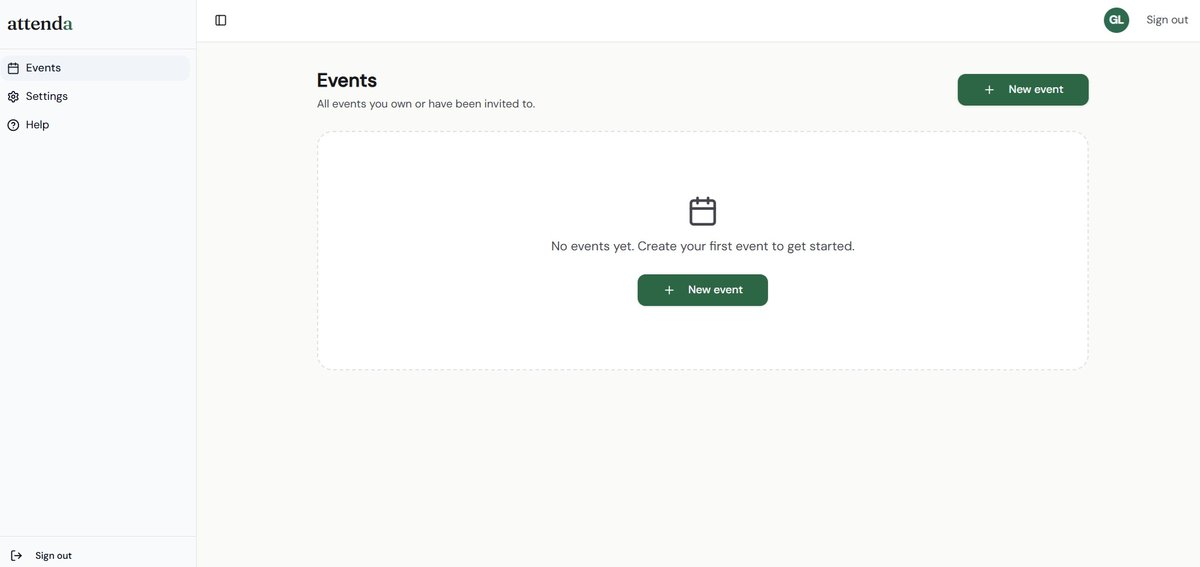
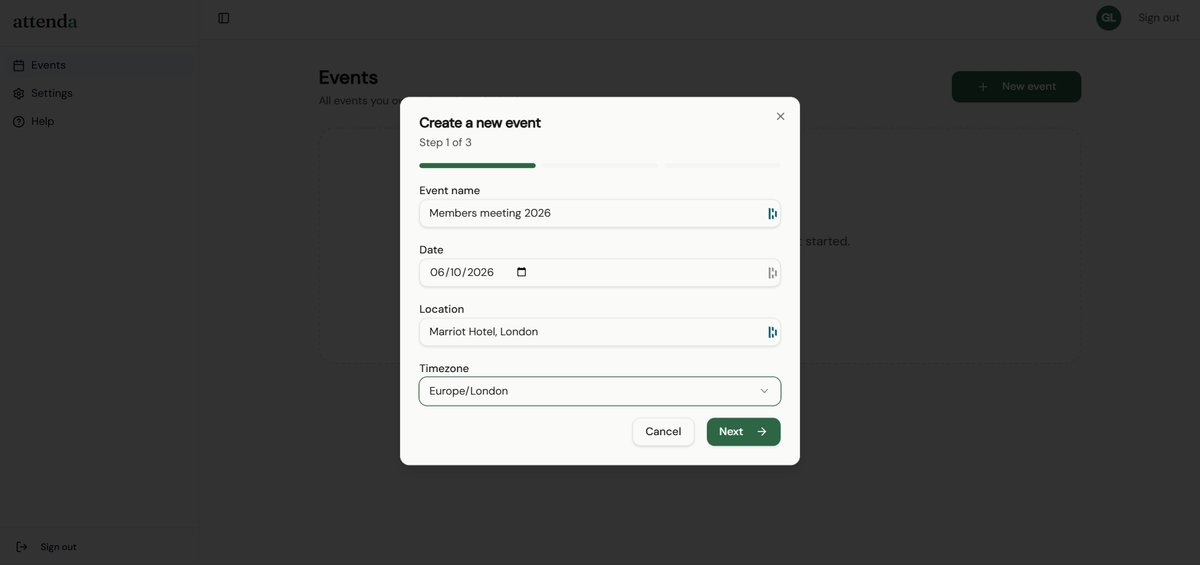
Step 1: Create your event
Log in to Attenda and click New event. Add the event name, date, location, and timezone. The setup wizard walks you through three steps in under two minutes.
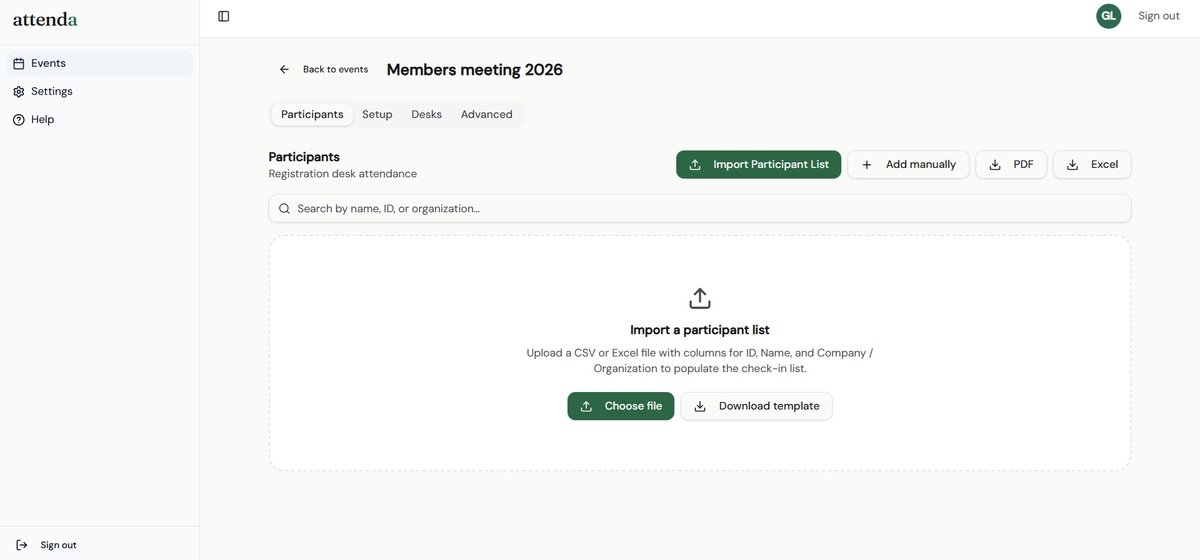
Step 2: Import your participant list
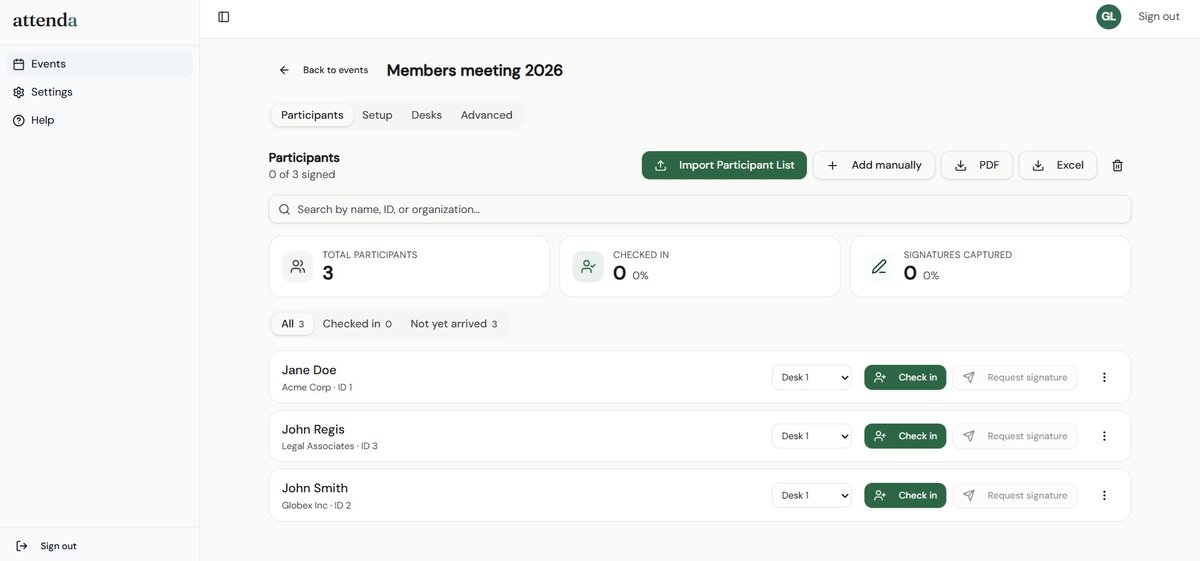
Go to the Participants tab and upload your attendee list as a CSV or Excel file. Required columns are ID and Name — Organisation is optional. Download the template if you are unsure of the format.
Step 3: Check in guests and request signatures
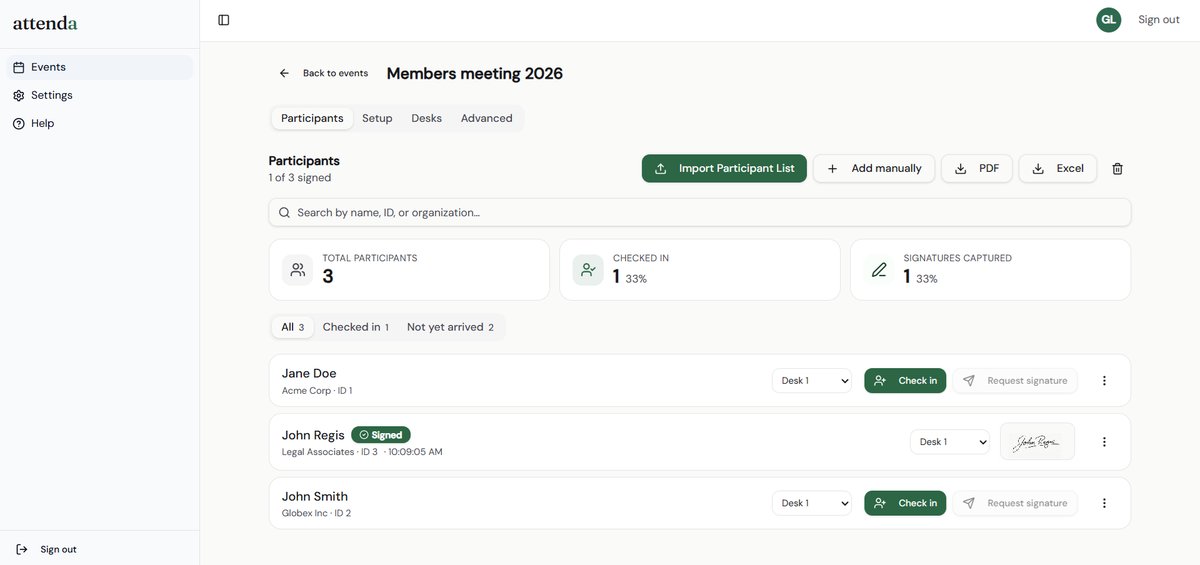
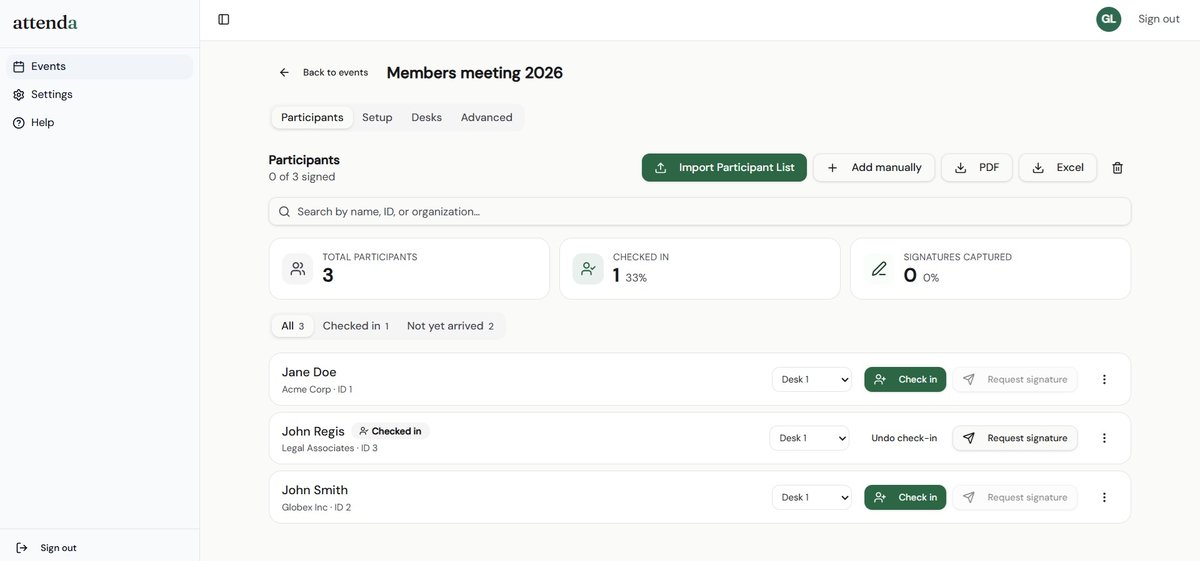
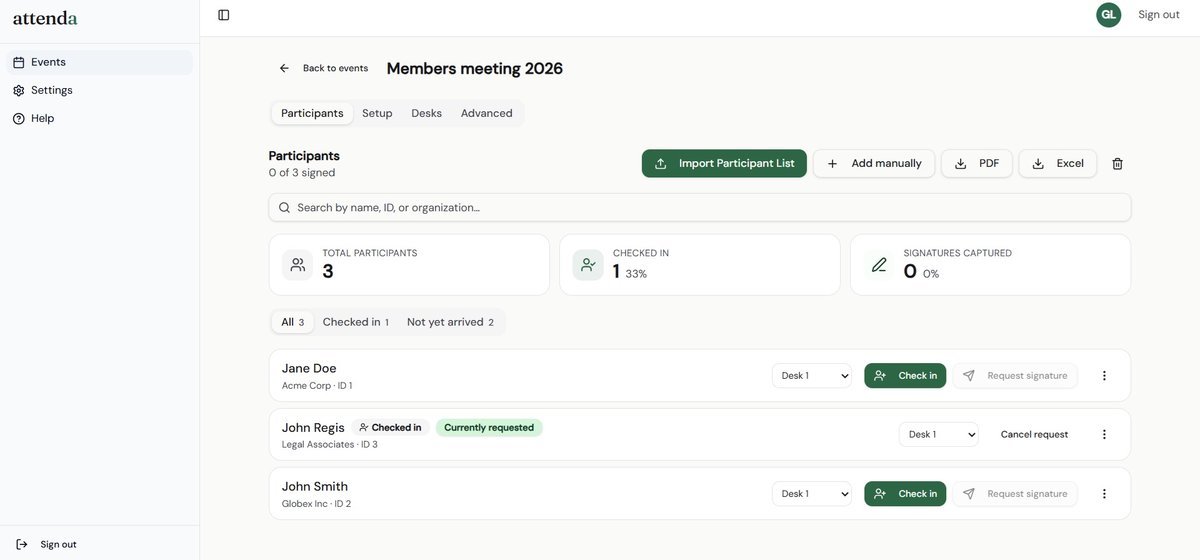
In registration desk mode, find each guest and check them in with one click. Once checked in, the Request signature button activates. Clicking it sends the request to the kiosk screen facing the guest in real time.
Step 4: Guest signs on the kiosk screen
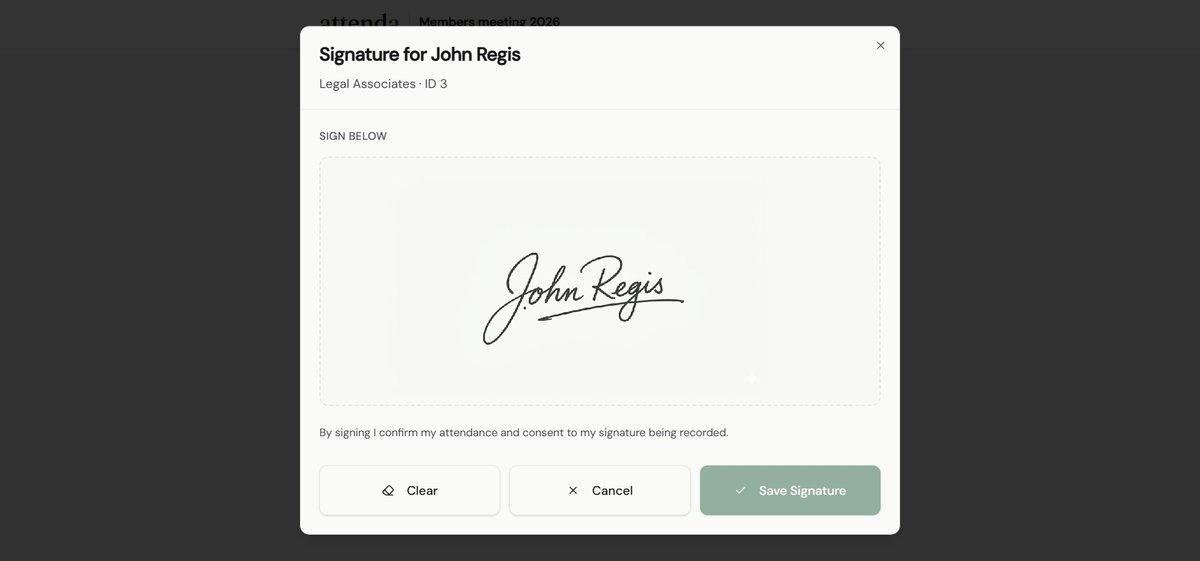
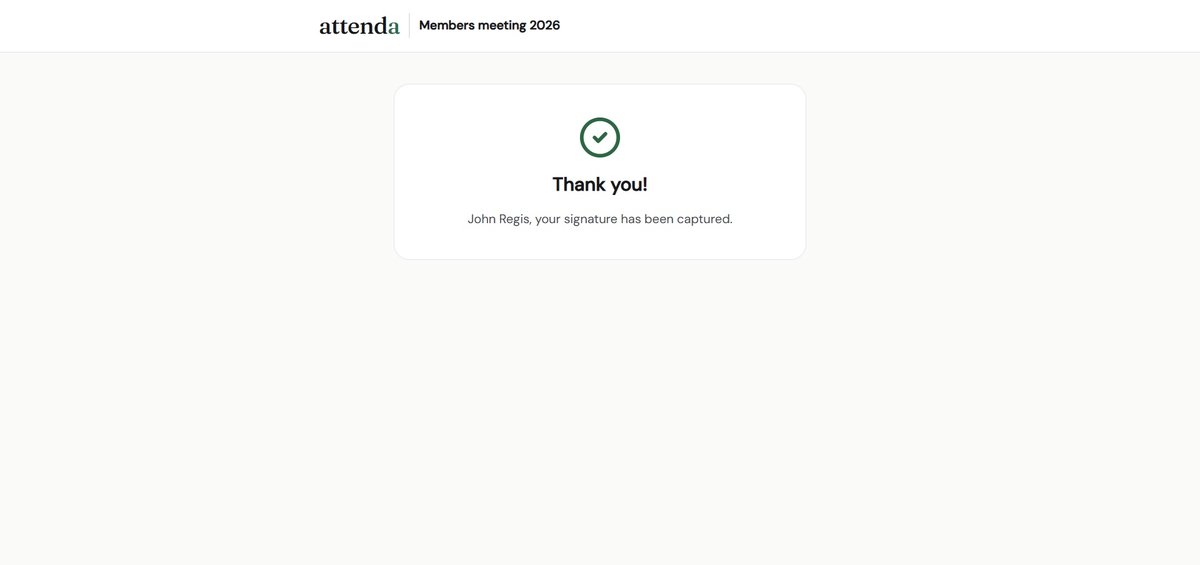
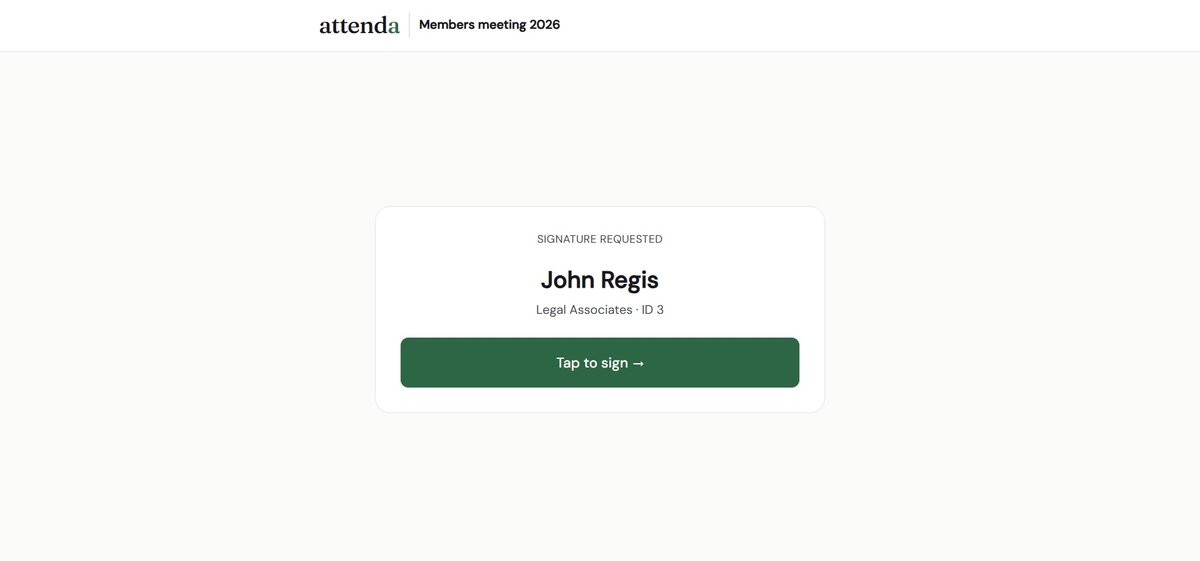
The kiosk screen updates instantly with the guest's name and a Tap to sign prompt. They tap, draw their signature with a finger or stylus, and save. The consent notice is displayed before they confirm. The whole interaction takes about 15 seconds.
Step 5: Monitor and export
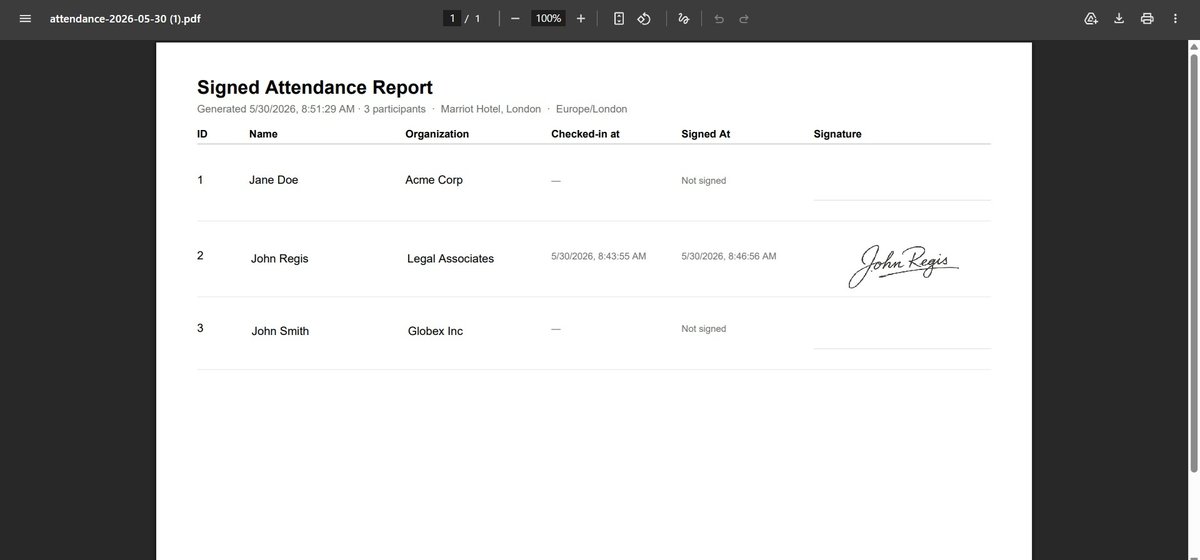
The admin panel updates in real time — signed status, exact timestamp, and a signature thumbnail for each participant. Once the event ends, export the full attendance report as PDF or Excel immediately.
What to tell your attendees
- Note in your pre-event email that check-in will be digital this year
- Tell them they will be asked to sign on a tablet at the entrance — it takes about 15 seconds
- Confirm they do not need to download any app or create any account
- Reassure them their signature is used only for attendance verification and stored securely
Common questions
Is a electronic signature legally valid?
This depends on your jurisdiction and the purpose. For internal attendance records, meeting minutes, and training logs, a timestamped electronic signature is generally more reliable than paper. For signatures that need to meet specific legal thresholds in regulated contexts, consult a lawyer. The EU eIDAS Regulation provides a useful framework for understanding electronic signature categories in Europe.
What if someone refuses to sign digitally?
Keep a paper fallback available and record them manually in the admin panel afterwards. This is rare but worth preparing for at formal events.
What if the wifi drops mid-event?
In kiosk check-in mode, the participant list is cached on the device when you first open the event with wifi. If the connection drops, guests can still find their name and sign — data queues locally and syncs when the connection returns. Registration desk mode requires a live connection between the two screens.
Can I add walk-in participants on the day?
Yes — add them from the admin panel at any point before or during the event. They appear on the kiosk immediately, ready to sign.
The shift from paper to electronic signatures at events sounds bigger than it is. Setup takes under five minutes, the guest experience is faster than passing around a clipboard, and you leave with a clean exportable record instead of a crumpled sheet. Once you have done it once, you will not go back.
Try it free at your next event
Attenda is free for up to 10 participants. Set up your event, upload your list, and you are ready in under five minutes. No credit card required.
Start free →